


Social media and email marketing are two of the most widely used digital marketing tactics. They’ve both had their ups and downs over the years, and been subject to wild speculations, but they’re still here and still performing. People will just laugh if you say “email is dead” anymore. And while some companies still struggle to prove ROI for social media, at least now everybody knows it really can be done.
If so many of us are doing both email and social, why not sync them up?
Integrating social and email gets even more attractive once you see how easy it really is to do. These aren’t projects that take four months and $40,000 to implement; we’re talking about fixes that could be done in an afternoon by two or three people.
Add all that to the fact that most marketers (and most of your competitors) aren’t doing this. Now it actually starts to look like a nice opportunity to get ahead.
And we want you to get ahead. So to help you get more out of both your email marketing and your social media marketing, here is a herd of ideas for how to integrate the two channels. I’ve started with audience-building tactics first, then shifted to content swapping.
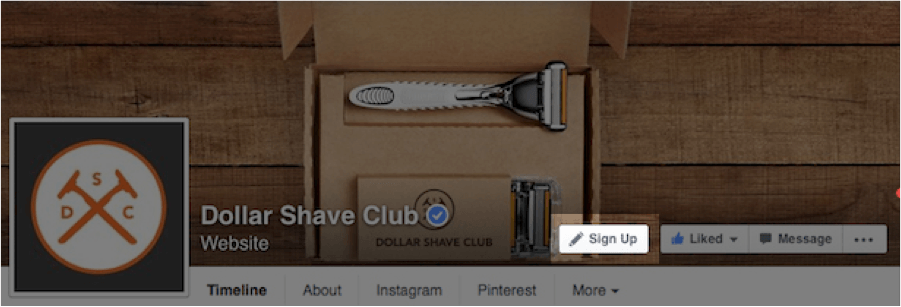
Add an email sign-up tab to your Facebook account
Facebook offers various types of calls to actions: Book Now, Contact Us, Use App, Play Game, Shop Now, Sign Up, Watch Video, and more. Use the Sign Up call to action so that all your Facebook work will now contribute to growing your email list.
Announce your new emails across your social channels

Occasionally pitch joining your email list in your social media updates
This is especially effective if you’re about to send an email that’s gotexclusive content (i.e., content that’s not available to anyone who isn’t an email subscriber).

Use SlideShare’s lead generation contact form
SlideShare is a terrific way to take blog posts and other content marketing formats and spin them into more content and more interactive content as a SlideShare. It is especially well-suited to B2B marketers.And – you can even build your email list with it. SlideShare’s lead generation set up lets you control where and how the lead generation form will pop up.

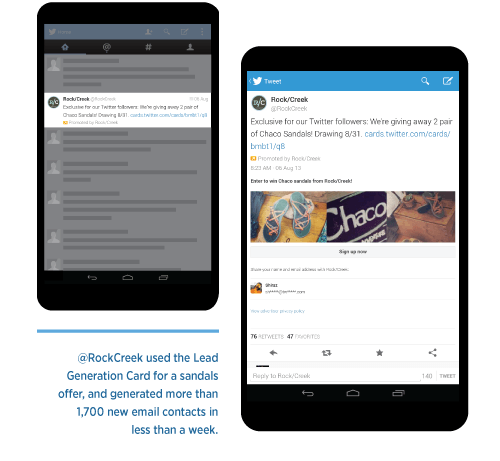
Test Twitter’s lead generation cards
These aren’t cheap, but if you have budget and are willing to test creative, settings, and audiences, it is possible to build an email list as affordably on Twitter as on Facebook or Google or anywhere else.
Run a Facebook contest to build your email list
These work best for converting existing Facebook followers into email list subscribers. If your number of likes on Facebook is really low or you don’t have much of a presence on this platform, contests can generate disappointing results.Improve your chances by offering an unusually good prize, and make it something your ideal clients or customers would especially covet – not just another iPad… or iPad mini. Cool those may be, but tie your reward to your brand in some way if you can.

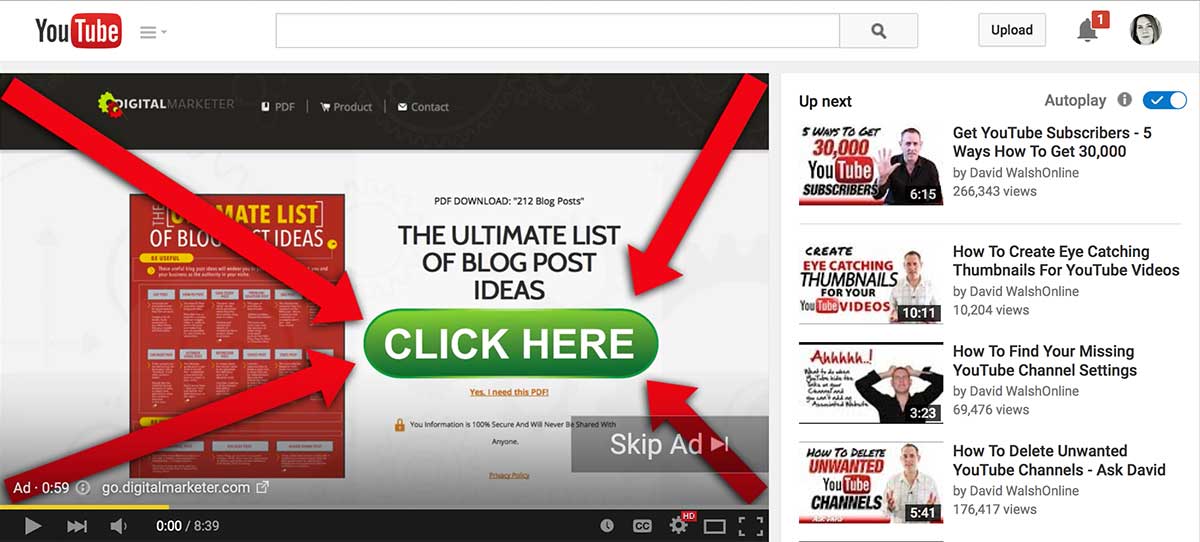
Add annotations to your YouTube videos. Make them a call to action to join your email list
Annotations are a way to add clickable, embedded links in your videos. You can add a bunch of YouTube-based annotations to let people go to different YouTube videos. But you also get one very special “Associated Website” annotation that lets you send people back to another website… or to a landing page on your website that captures email addresses.You can reuse this Associated Website annotation link in all your videos. That is, you get only one Associated Website link, but you can use it in every video.
Use an embedded overlay in the links you share on social media to create an email opt-in form
Many of us like to curate content from third-party sites. This is better than just sharing your own content because:
- It makes you look like an authority in your niche
- Some research has shown people believe 3rd party content more than content provided directly by a business
- It reduces how much content you have to create
But some marketers hang back from content curation because they don’t want to send people away to a third-party site, never to see them again. Fortunately, there’s a workaround: You can add an overlay to any page you send people to. You just need a special kind of link.
The Equity Directory shared a link to a site in their Twitter feed. The tweet did well – it got retweeted several times, including this particular retweet that I found:
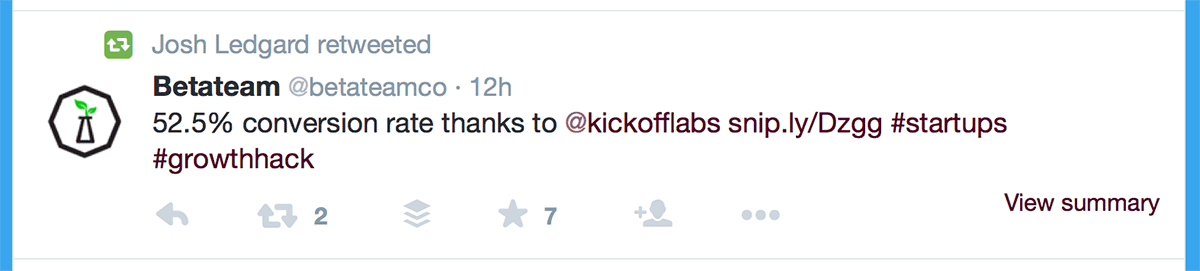
When you click on the link, you’re brought to the site. But there’s also an overlay at the bottom of the browser screen, prompting you to join The Equity Directory’s email list. Every link they share on social adds this overlay opt-in.
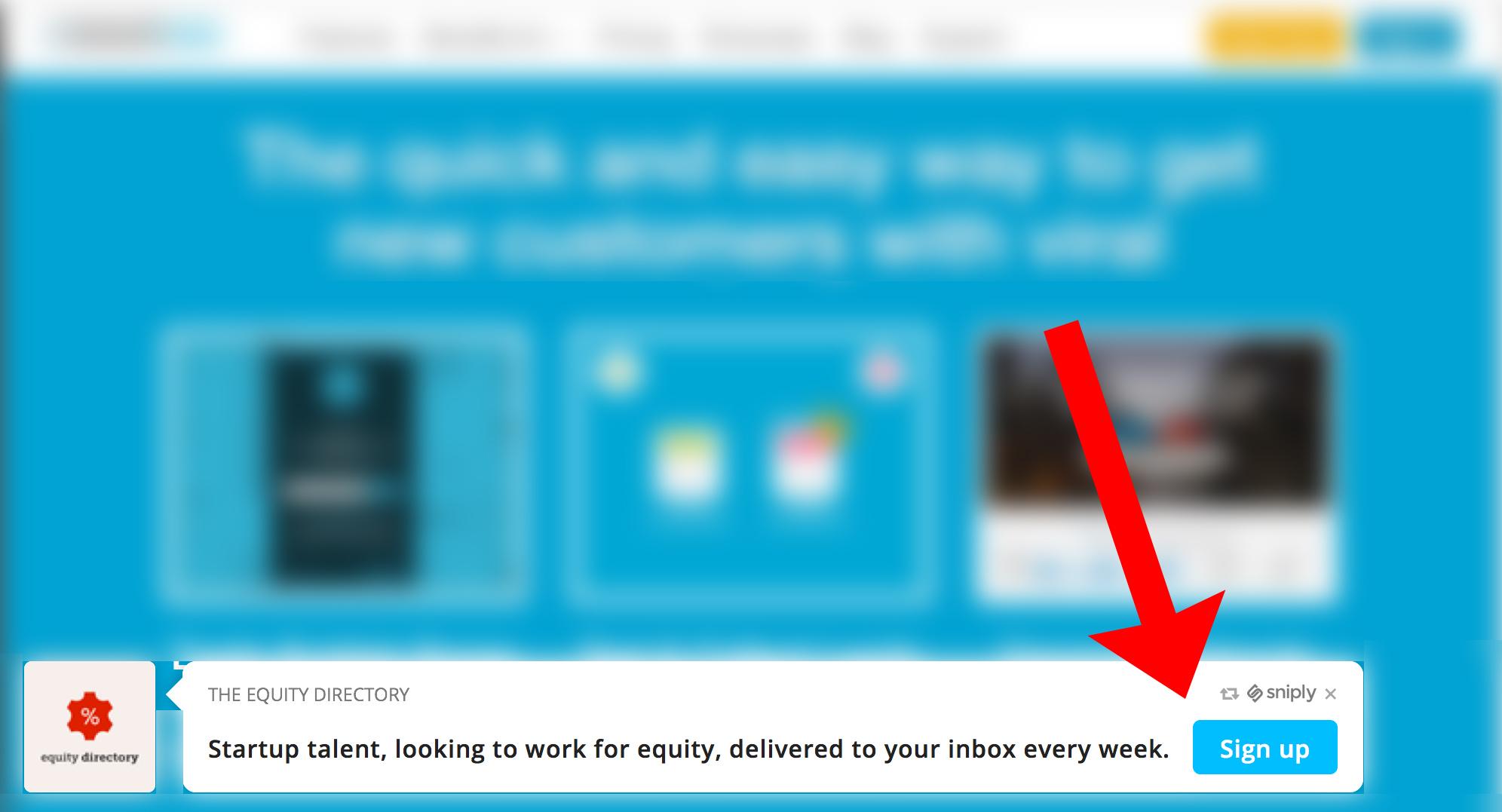
The tool they used to do this is called Snip.ly. It’s good, but there are other tools that create similar overlays. Most of them have free trials. After that, it’s about $30 a month.
Include social sharing icons in your email messages
This is one of the most basic ways to integrate your email marketing and your social media marketing. It’s super-simple, and most email service providers give you a little social media icon widget to add to your email templates.
So don’t get it wrong.
Wrong? Yep. This is one of the worst email usability mistakes I see. The social icons are there, but they’re so darn tiny that you’d need a magnify glass to find them.
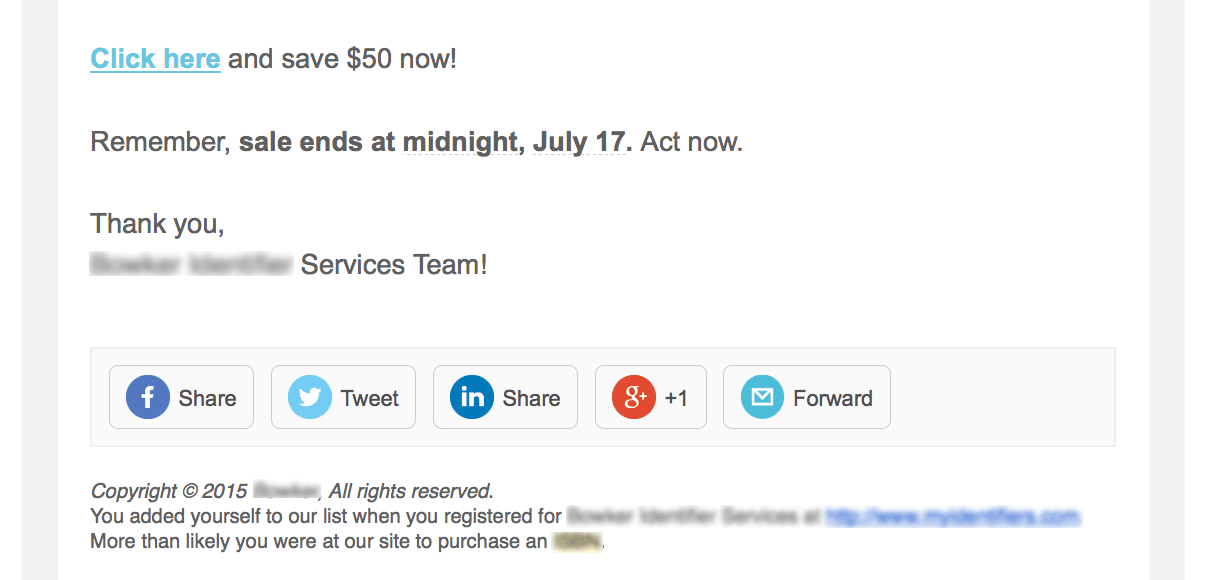
Don’t make it hard for people to click the icons in your emails. Make the icons at least 44 x 44 pixels wide, and add a buffer area around each icon. That way people can click the correct button with their thumb.
This example is not so good (it’s from an email footer):

This is good:
Include a specific call to action to follow you on social media in your emails
This is easy. Just add some short, nicely formatted copy about the benefits of following you on social media. Usually there’s room for this in the footer area, but if you really want to get more followers, add it to the body of the email.
When people have finished the email opt-in process, give them a prompt to follow you on social media, too.
They just stepped up to get emails from you. Maybe they’d like to connect on social media, too.

Provide social links for unsubscribes
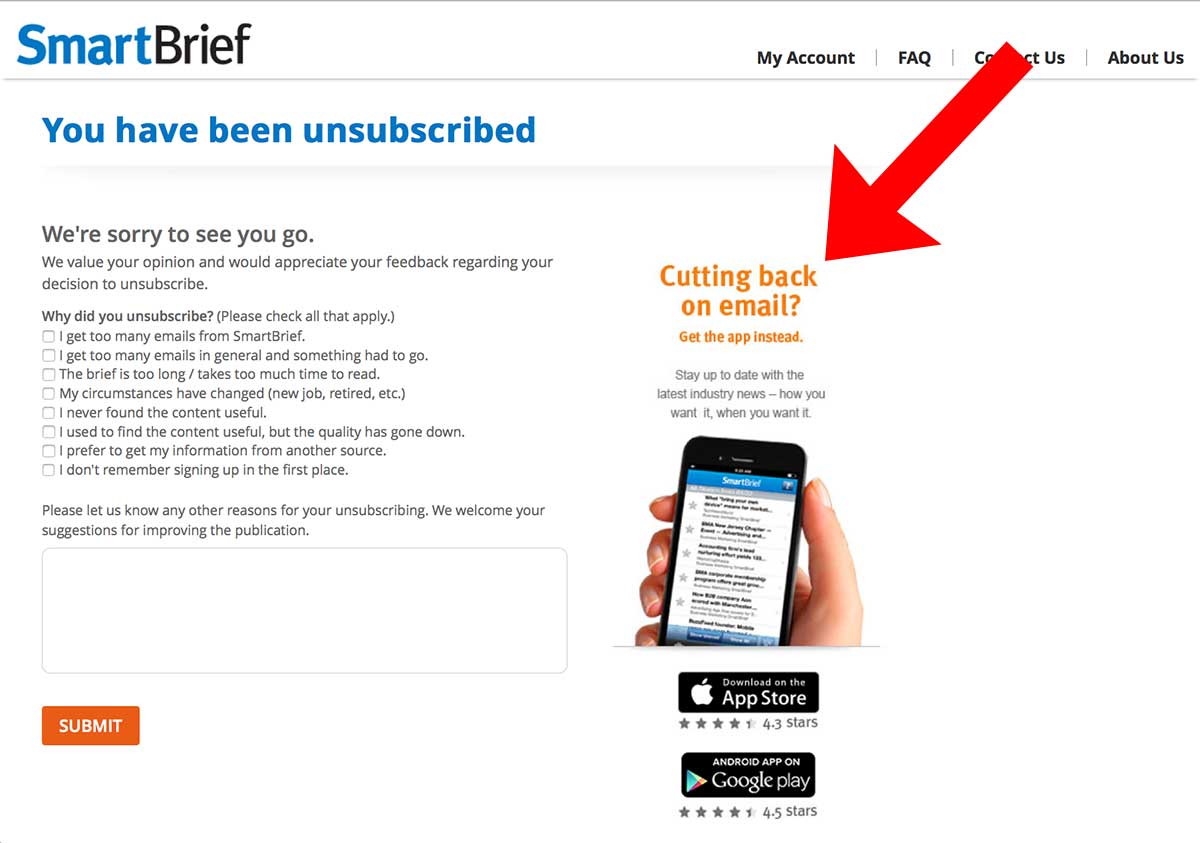
When people unsubscribe from your email list, it may not mean they hate you and never want to hear from you; maybe they just get too much email. When they are on the final confirmation page, ask them to follow you on social media. They might want to stay in touch, just with fewer emails involved.
This SmartBrief final unsubscribe page prompts me to finish a survey and to download their app. Why not add a prompt to follow them on social media, too?
Embed “click to tweet” text snippets to make it easy to share your emails
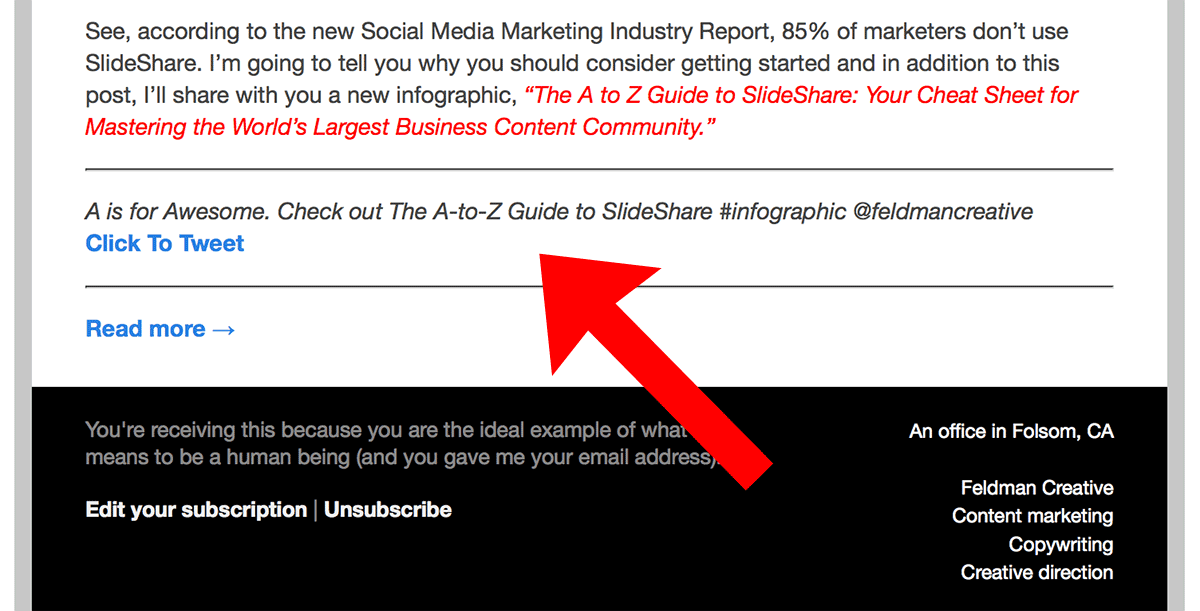
Results in this. How’s that for making sharing easy?

Include mentions of your most popular social media updates in your email messages
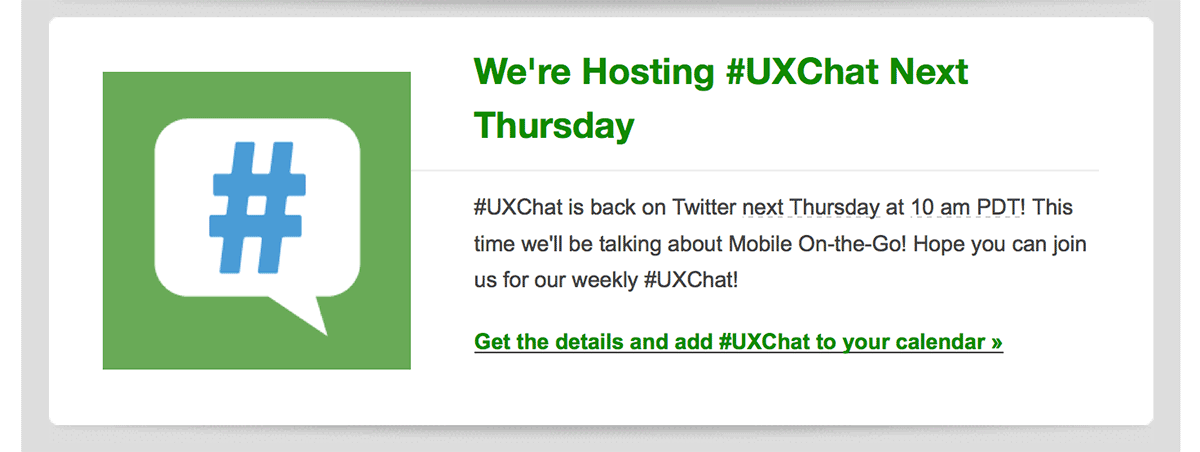
Here’s a section of an email newsletter that announces an upcoming Twitter chat:
Announce contest winners and other social media events in your email messages
This is from a Tile email, announcing a Facebook contest: